Guide
How to connect your own domain to your Storelala store
Already own a domain? You can point it to your Storelala store in about ten minutes. You add two records where you manage the domain, and Storelala does the rest, including the padlock.
Before you start
- A domain you own, such as yourbrand.pk or yourbrand.com.
- A Core or Grow plan. Connecting your own domain comes with both.
- A login for the place that manages your domain’s DNS. That’s usually where you bought it. For a .pk domain, it’s wherever its nameservers point, because PKNIC only holds the nameservers.
- Your free yourbrand.storelala.com address keeps working after you connect.
Step 1: Open Address in your admin
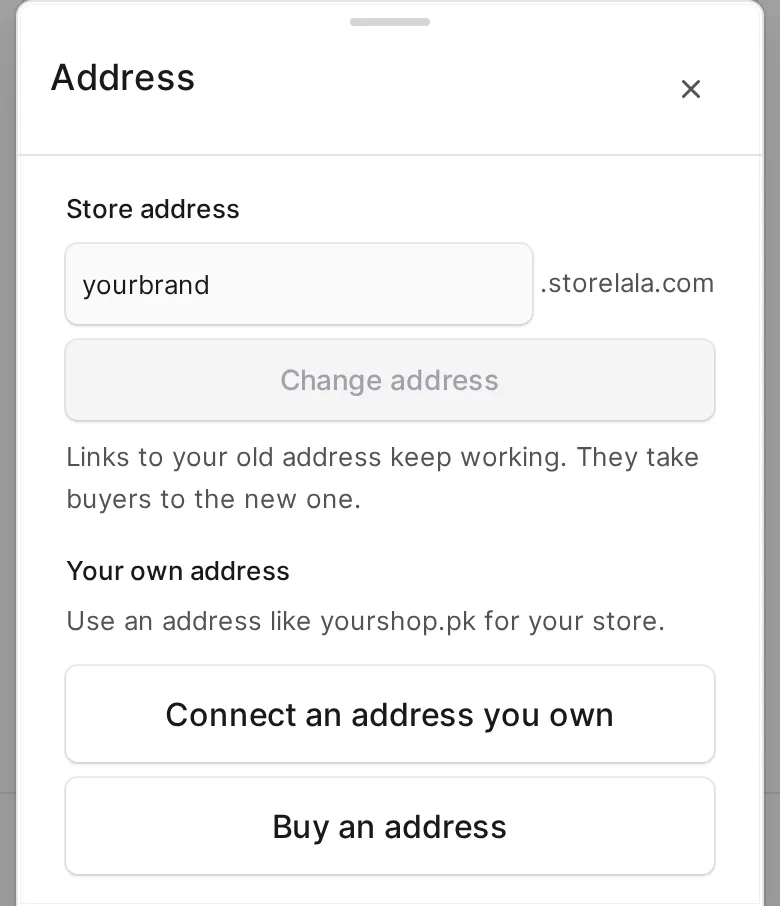
In your admin, go to Store and open Address. Under Your own address, tap Connect an address you own.
Step 2: Type your domain
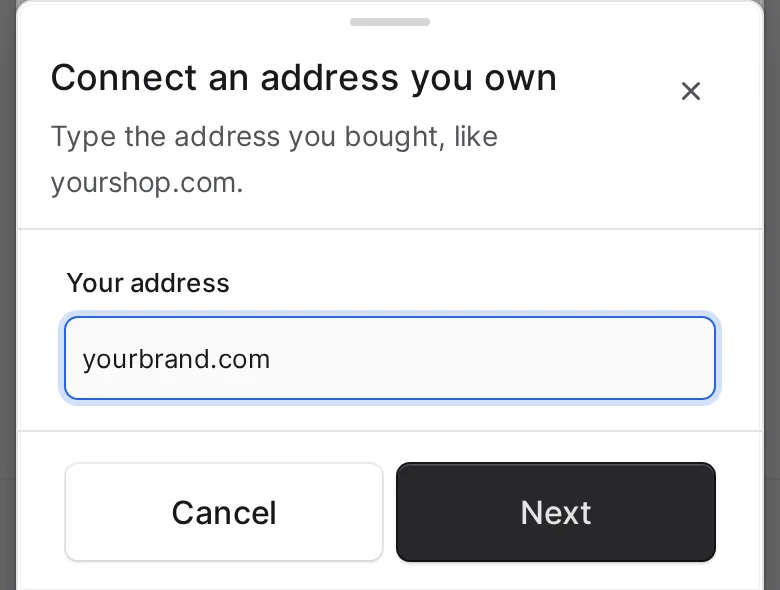
Type your domain without www or https, for example yourbrand.com, and tap Next.
Step 3: Add the two records
Storelala shows the exact records for your domain. Tap Copy next to each name and value and add them where you manage your DNS. Each record shows Not added yet until Storelala can see it.
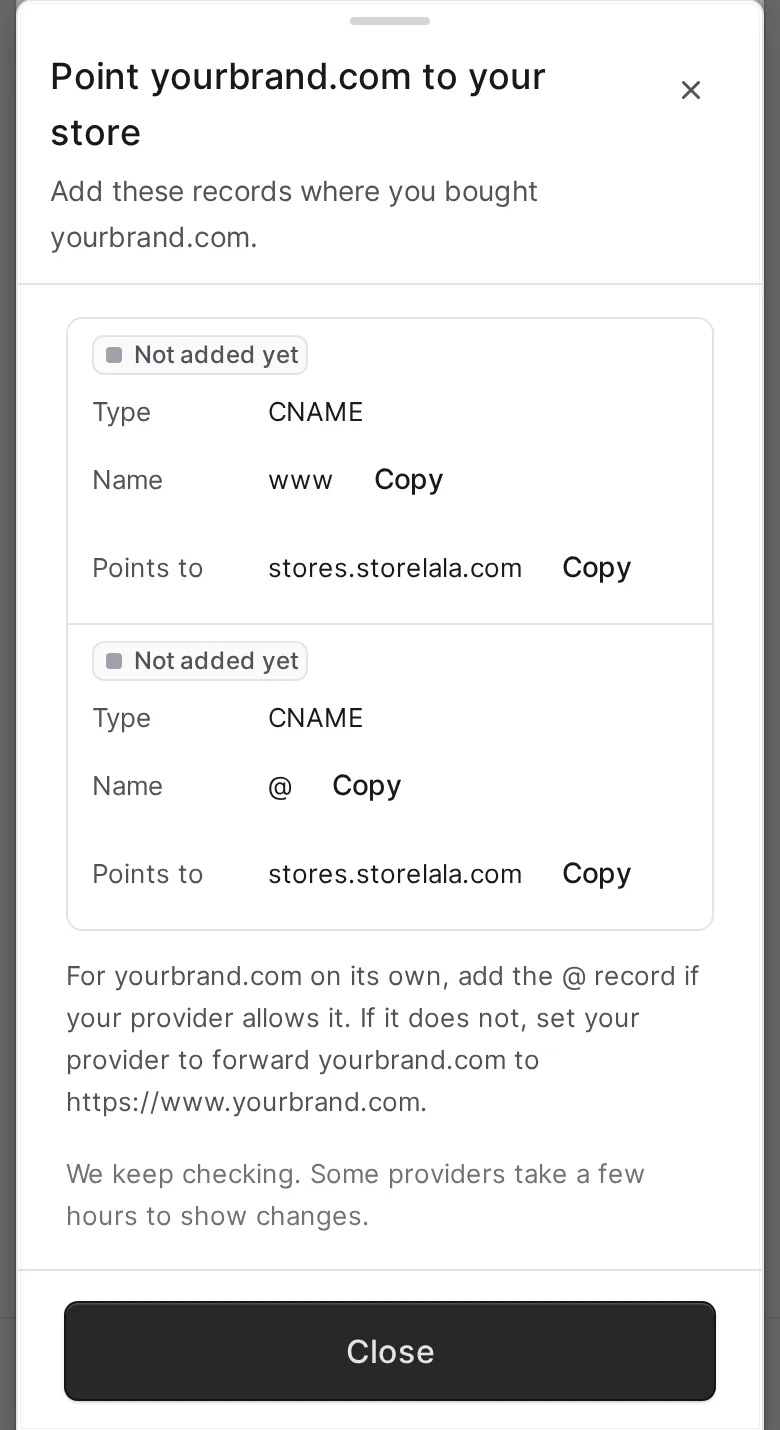
| Name | Type | Points to |
|---|---|---|
| www | CNAME | stores.storelala.com |
| @ (your domain on its own) | CNAME or ALIAS | stores.storelala.com |
If www or @ already has an A, AAAA or CNAME record, edit it or delete it. Storelala lists any record that is in the way.
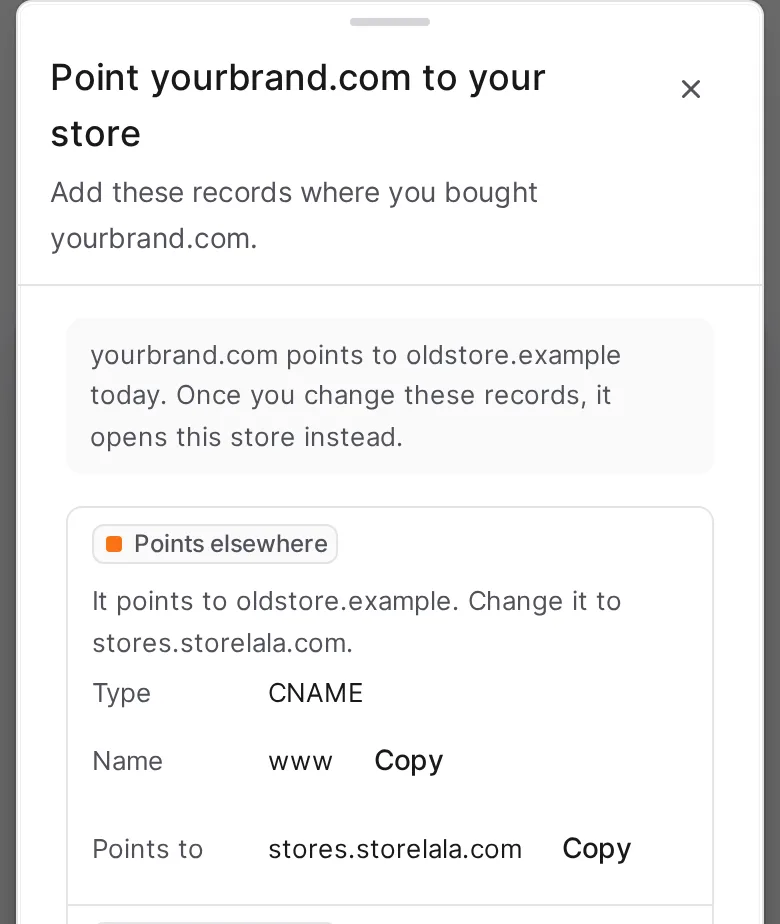
Moving from another store builder? If your domain points to another store today, the record shows Points elsewhere and says where it points. Change that record to the value Storelala shows. Your old store stops getting visitors at this domain as soon as you change it, so do it when you’re ready to switch.
Where to add the records
The records are the same everywhere. Only the screen you add them on is different.
- Cloudflare: open your domain, then DNS, then Records. Set Proxy status to DNS only (grey cloud) on both records. A CNAME on @ is fine, Cloudflare flattens it.
- Namecheap: Domain List, Manage, Advanced DNS. Add www as a CNAME and @ as an ALIAS.
- Hostinger: open the domain’s DNS records. Add www as a CNAME and @ as an ALIAS.
- Spaceship: open the domain’s DNS records. Add both as CNAME. Spaceship turns the @ CNAME into an ALIAS for you.
- GoDaddy: add www as a CNAME. GoDaddy can’t point the domain on its own with a CNAME, so set up forwarding instead: forward yourbrand.com to https://www.yourbrand.com, as a permanent (301) redirect.
- .pk domains: PKNIC only keeps your nameservers. Add the records at the DNS host those nameservers point to, for example Cloudflare.
- Anywhere else: if your provider has no ALIAS or CNAME flattening for @, forward the bare domain to https://www.yourbrand.com. Storelala tells you which one your provider needs.
Step 4: Wait for Live
Keep the screen open. Storelala checks by itself and moves on when your www record is right. Most domains are live within a few minutes. Some providers take a few hours to show changes.
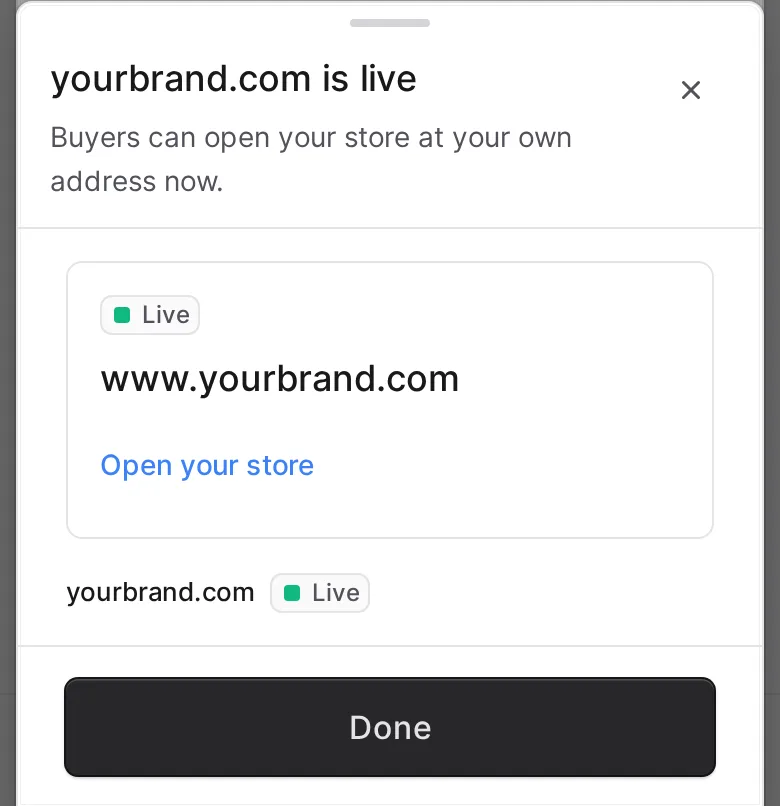
You can close it and come back. Your domain shows Connecting until it’s ready. Tap Check again to check now, or Finish connecting to see the records again.
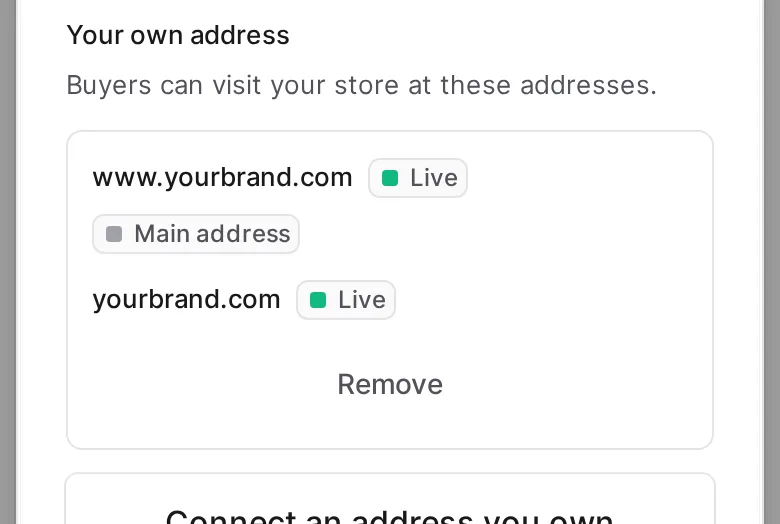
Once www is live it becomes your Main address, and yourbrand.com without www takes shoppers to it. The padlock (https) is set up for you.
If something isn’t right
- Not added yet: Storelala can’t see the record yet. Check the name and value, then wait a few minutes.
- Points elsewhere: the record still points to your old host. Change it to the value Storelala shows.
- Cloud is orange (Cloudflare): turn the cloud grey (DNS only) on that record.
- Needs attention: follow the note under your domain, then tap Check again.
- Asked to add a TXT record: if your domain already points to Storelala, or another store has it, Storelala asks for a TXT record named _storelala to show the domain is yours. Add it exactly as shown, wait a few minutes, then tap Next again.
Remove a domain
Tap Remove under your domain. Shoppers can no longer reach your store at it, and your yourbrand.storelala.com address keeps working.
Questions sellers ask
How long does it take to connect my own domain to Storelala?
About ten minutes of your time. Most domains go live within a few minutes of you saving the records. Some providers take a few hours to show changes, and Storelala keeps checking by itself.
Which plans can connect their own domain?
Core and Grow. Lite stores use their free yourbrand.storelala.com address.
Can I connect a .pk domain?
Yes. PKNIC only keeps the nameservers, so you add the two records at the DNS host those nameservers point to, for example Cloudflare.
Does my free storelala.com address stop working?
No. Your yourbrand.storelala.com address keeps working after you connect your own domain, and after you remove it.
Storelala is the Shopify alternative in Pakistan, made for sellers who take cash on delivery and run their store from a phone. Start your store on a free yourbrand.storelala.com address, and connect your own domain when you’re ready.


